Friday, 11 August 2023

Oracle 19C Database 2 Node RAC configuration on OEL 7.9 with step by step lab

Hi All,

In this post i am going to show you Oracle 19C database  2 node RAC  installation .

Note : Installation of VM and OEL go through this video 

https://www.youtube.com/watch?v=PPq2bM8Oymg&t=9s

after OEM 7.* install , do the follow steps :


1. update the yum repository and then update the pre-requisites for oracle 19C database and ASM.

yum update -y


yum install -y oracle-database-preinstall-19c 


yum install -y oracleasm-support


yum install -y bind


yum install -y clu*


Now , configure VMbox tools ..

- devices .. > insert Guest Additional CD Image....

enable the screen resolution and font size .. etc ..


after that restart the Linux Machine. 

init 6

Update the below configuration : 

cat /etc/sysctl.conf

cat /etc/selinux/config

SELINUX=disabled


Ping should be work also add the host file names in /etc/hosts


groups creation :

groupadd -g 5001 oinstall 

groupadd -g 5002 dba

groupadd -g 5003 oper

groupadd -g 5004 asmadmin

groupadd -g 5005 asmdba

groupadd -g 5006 asmoper


user creation :


useradd -u 5007 -g oinstall -G dba,oper,asmdba oracle

useradd -u 5008 -g oinstall -G asmadmin,asmdba,asmoper,dba grid


In this screen some of the groups and oracle user already exist so we are seeing that error as well. those are created automatically at the time of 19C database pre-requisites rpm installation .


[root@racs1 ~]# id grid

uid=5008(grid) gid=54321(oinstall) groups=54321(oinstall),54322(dba),5004(asmadmin),5005(asmdba),5006(asmoper)

[root@racs1 ~]# id oracle

uid=54321(oracle) gid=54321(oinstall) groups=54321(oinstall),54322(dba),54323(oper),54324(backupdba),54325(dgdba),54326(kmdba),54330(racdba)

[root@racs1 ~]#


Change the password for oracle and grid users 

passwd oracle

passwd grid


Create the directories in which the Grid and  Oracle  database software will be installed.


mkdir -p /u01/app/oracle

mkdir -p /u01/app/oracle/product/19.0.0/db_home

mkdir -p /u02/app/grid_base

mkdir -p /u02/app/19.0.0/grid_home

mkdir -p /u02/app/oraInventory


chown -Rf grid:oinstall /u02

chown -Rf oracle:oinstall /u01


chmod -Rf 775 /u01

chmod -Rf 775 /u02 


Configure Bash Profile of Grid and Oracle Users.


create .bash_profiles  for grid 


# Oracle Settings

export TMP=/tmp

export TMPDIR=$TMP

export ORACLE_BASE=/u02/app/grid_bas

export ORACLE_HOME=/u02/app/19.0.0/grid_home

export ORACLE_SID=+ASM1

export ORACLE_TERM=xterm

export BASE_PATH=/usr/sbin:$PATH

export PATH=$ORACLE_HOME/bin:$BASE_PATH

export LD_LIBRARY_PATH=$ORACLE_HOME/lib:/lib:/usr/lib

export CLASSPATH=$ORACLE_HOME/JRE:$ORACLE_HOME/jlib:$ORACLE_HOME/rdbms/jlib

:wq!

. .bash_profiles


Stop and Disable  Firewall - in real time we will re-open the firewall post installation's 

====================

systemctl stop firewalld.service

systemctl disable firewalld.service


NTP Configuration
===========================================

systemctl enable chronyd.service
systemctl restart chronyd.service

check the status for NTP :  status code 200 is okay 

chronyc -a 'burst 4/4'
chronyc -a makestep


==========================================

Start DNS configuration ::: 

====================================


we have installed the bind packages , cross check 


Then Edit the Configuration of name server

take the backup of original one .. then update the red marked values as per your IP.


cp /etc/named.conf /etc/named.conf_bkp


vi /etc/named.conf_bkp

options {

        listen-on port 53 { 127.0.0.1; 192.168.56.71; };

        listen-on-v6 port 53 { ::1; };

        directory       "/var/named";

        dump-file       "/var/named/data/cache_dump.db";

        statistics-file "/var/named/data/named_stats.txt";

        memstatistics-file "/var/named/data/named_mem_stats.txt";

        recursing-file  "/var/named/data/named.recursing";

        secroots-file   "/var/named/data/named.secroots";

        allow-query     { localhost; 192.168.56.0/24; };


zone "localdomain.com" IN {

        type master;

        file "localdomain.zone";

        allow-update { none; };

};


zone "56.168.192.in-addr.arpa." IN {

        type master;

        file "56.168.192.in-addr.arpa";

        allow-update { none; };

};


Create the Forward and Reserve Zone files as mentioned in named.conf

FORWARD ZONE :

create a forward zone :

cp /var/named/named.localhost /var/named/localdomain.zone

vi /var/named/localdomain.zone

$TTL 86400

@ IN SOA racs1.localdomain.com. root.localdomain.com. (

2014051001 ; serial

3600 ; refresh

1800 ; retry

604800 ; expire

86400 ; minimum

)

@ IN NS racs1.localdomain.

localhost IN A 127.0.0.1

racs1 IN A 192.168.56.71

racs2 IN A 192.168.56.72

racs1-priv IN A 192.168.10.1

racs2-priv IN A 192.168.10.2

racs1-vip IN A 192.168.56.81

racs2-vip IN A 192.168.56.82

racs-scan IN A 192.168.56.91

racs-scan IN A 192.168.56.92


Create a reserve zone : 

cp /var/named/named.loopback /var/named/56.168.192.in-addr.arpa

vi /var/named/56.168.192.in-addr.arpa

$TTL 86400

@ IN SOA racs1.localdomain.com. root.localdomain.com. (

2

3H

1H

1W

1H )

@ IN NS racs1.localdomain.com.

@ IN PTR localdomain.com.

racs1 IN A 192.168.56.71

racs-scan IN A 192.168.56.91

racs-scan IN A 192.168.56.92

racs-scan IN A 192.168.56.93

71 IN PTR racs1.localdomain.com.

91 IN PTR racs-scan.localdomain.

92 IN PTR racs-scan.localdomain.

93 IN PTR racs-scan.localdomain.


note  : restorecon /etc/named.conf  if any changes in the named.conf do this

check the DNS status and start :

systemctl status named.service

systemctl start named.service


Change the Group to named from root :


iptables -A INPUT -i lo -j ACCEPT

add resolv.conf 

# Generated by NetworkManager

search localdomain.com.

nameserver 192.168.56.71

nameserver 192.168.56.72

options timeout:1

options attempts:5


nslookup racs1 public .. 

nslookup racs-scan .


shut down the Node1 RACS  ... then prepare the Node2 

Taking the backup of my Node1 ... to build the node2 ..

Click on the File ...> Export Appliance .... 


select the Machin and click next 


select the location for this backup and click on next


Click on Finish 


wait for some time that will take some time 10 to 15 mins .. depends on system speed.


ASM DISK Group Setup :

after taking the backup of your node1 ,  create disks for ASM Storage ..

Node1 : Racs1 

Click on General > Storage > Click on hard disk as mentioned in the snap..


click on Create  and select  VDI then click on next


Click on next .. keep all values default 


select the path , i have created 2 folders for racs1 and racs2 .. for Storage i have created in the Dir... give 25G and create OCR disk group


create second and 3rd groups  .. DATA and ARCH


choose those 3 disk to storage SATA :


Now we will prepare the Node2  : from the node1 backup.

Click on the File and Import Appliance .. 


Restore the node1 backup which we taken before :


Click on Next ..

Change the name and path for the Node2  hostname : racs2 , path also select where we installed node1 . there we have created one more dir name with : racs2 


We can now able to see the node2 machine :  racs2


Now we can create the shared disk and we will add those shared disks with node2 storage :

select file from the VM .. > tools ..>  select Virtual media manager ..> 
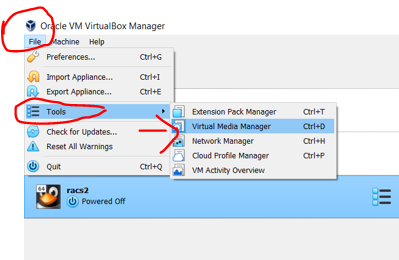


Select the disks one by one and type : sharable  and click apply .. repeat the same for all 3 disks : DATA , OCR and ARCH 


you will get release popup click on release


select node2 and add those disk to that node : 

General >>>> Storage >>> Hard disk >>> select the DATA and OCR Disks ..

add to node2 :


start the node2 and change the hostname and network interfaces ... IP'/s 


Change Hostname : from racs1 to racs2

nmcli general hostname

nmcli general hostname racs2.localdomain

nmcli general hostname

service systemd-hostnamed restart

Change Network

Select Applications and settings
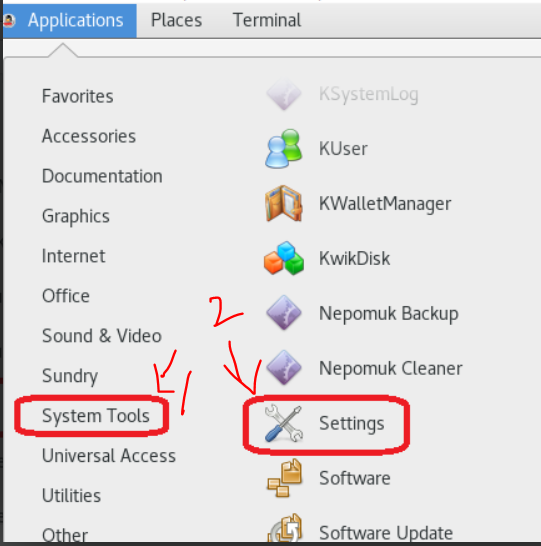


then update IP's for node2 : 


after the run this

systemctl restart network

init 6 .. restart the node2 and node1 .


post restart re-check the nslookup working or not 

systemctl start named.service


Node1 :


unzip the oracle 19c grid and oracle software from the shared folder Only One NODE1 ...

cd /media/sf_VM_Softwares/19C_DB_Linux_7.8-SW/19C-Grid_sw

Grid Software : 

unzip V982068-01.zip -d /u02/app/19.0.0/grid_home/


Oracle Software Unzip :

[root@racs1 19C_Database]# pwd

/media/sf_VM_Softwares/19C_DB_Linux_7.8-SW/19C_Database

[root@racs1 19C_Database]# ls

V982063-01.zip

[root@racs1 19C_Database]# unzip V982063-01.zip -d /u01/app/oracle/product/19.0.0/db_home/


Install the package cvudisk from the grid home as the “root” user on all nodes.

[root@racs1 19C_Database]# cd /u02/app/19.0.0/grid_home/cv/rpm/

[root@racs1 rpm]# ls

cvuqdisk-1.0.10-1.rpm

[root@racs1 rpm]# pwd

/u02/app/19.0.0/grid_home/cv/rpm

[root@racs1 rpm]# rpm -Uvh cvuqdisk*

Preparing...                          ################################# [100%]

Using default group oinstall to install package

Updating / installing...

   1:cvuqdisk-1.0.10-1                ################################# [100%]

[root@racs1 rpm]#


COPY to Node2 ;

[root@racs1 rpm]# scp ./cvuqdisk* root@racs2:/tmp
The authenticity of host 'racs2 (192.168.56.72)' can't be established.
ECDSA key fingerprint is SHA256:xVUuoM0gg6tKwCZBarK0Cgw8+VmJgnXJFZDFNRTddK8.
ECDSA key fingerprint is MD5:2a:93:93:7a:f1:93:e9:79:65:16:fc:96:ac:aa:a9:04.
Are you sure you want to continue connecting (yes/no)? yes
Warning: Permanently added 'racs2,192.168.56.72' (ECDSA) to the list of known hosts.
root@racs2's password:
cvuqdisk-1.0.10-1.rpm                                                                                                                                  100%   11KB  11.0MB/s   00:00
[root@racs1 rpm]#


Configure Oracle ASM :

lsblk

fdisk /dev/sdb  .. similarly we need to do all 
fdisk /dev/sdc
fdisk /dev/sdd
fdisk /dev/sde
fdisk /dev/sdf


all done  fdisk /dev/sdf


all partitions are done ..


Configure oracleasm utility.

provide gird user and group oinstall.


Initialize the asmlib with the oracleasm init command to load oracleasm module and mount the oracleasm filesystem:-

When ASMLIB is configured, a special file system is created and mounted as /dev/oracleasm, you should notice the following line from the df command:-

oracleasm configure
oracleasm configure -i    >>>  grid oinstall   y   y 
oracleasm init 
oracleasm createdisk OCR /dev/sdd1
oracleasm createdisk DATA /dev/sde1
oracleasm createdisk ARCHIVE /dev/sdf1


oracleasm scandisks
oracleasm listdisks


NODE 2 :

oracleasm configure
oracleasm configure -i
oracleasm init 

note : disk creation not required on node2 

oracleasm scandisks
oracleasm listdisks


Password less connection :

Grid user :
./sshUserSetup.sh -user grid -hosts "racs1 racs2" -noPromptPassphrase -confirm -advanced


Oracle user :
./sshUserSetup.sh -user oracle -hosts "racs1 racs2" -noPromptPassphrase -confirm -advanced


Pre-check for RAC Setup


Pre-check for CRS installation using Cluvfy 

We use this Cluvfy command to check that our cluster is ready for the Grid install.

[grid@racs1 grid]$ ./runcluvfy.sh stage -pre crsinst -n racs1,racs2 -verbose

Display Config and Start Grid Installation
su –
export DISPLAY=:0.0
xhost +
su – grid
[grid@racs1~]$ DISPLAY=racs1.localdomain:0.0; 

export DISPLAY

[root@racs1 ~]# su - grid

Last login: Sat Aug 12 00:35:11 IST 2023 on pts/1

[grid@racs1 ~]$ cd $ORACLE_HOME

[grid@racs1 grid_home]$ pwd

/u02/app/19.0.0/grid_home

[grid@racs1 grid_home]$ ./gridSetup.sh

Direct login with Grid user : 

Select the Configure Oracle Grid Infrastructure for a New Cluster option, then click the Next button.


Accept the Configure an Oracle Standalone Cluster option by clicking the Next button.


Enter the cluster name racs-cluster, SCAN name racs-scan and SCAN port 1521, then click the Next button.


On the “Cluster Node Information” screen, click the Add button.
Enter the details of the second node in the cluster, then click the OK button.


Click the SSH connectivity button and enter the password for the oracle user. Click the Setup button to configure SSH connectivity, and the Test button to test it once it is complete. Once the test is complete, click the Next button.


Check the public and private networks are specified correctly as ASM & Private. Click the Next button.


Accept the Use Oracle Flex ASM for Storage option by clicking the Next button.


Select the No option, as we don’t want to create a separate disk group for the GIMR in this case. Click the Next button.


First Browse the path /dev/oracleasm/disks* using change discovery path

Set the redundancy to External, click the 12GB DISK for OCR configuration, then click the Next button.


Enter the credentials and click the Next button.


Accept the default IPMI option by clicking the Next button.


un-select EM. Click the Next button. Default value


Set the groups to oinstall and click the Next button. Accept the warnings on the subsequent dialog by clicking the Yes button.


Click the Next button.


Accept the default inventory directory by click the Next button


Default : we will provide run the root.sh manually 


pre-requisite checks : check and fixup


[root@racs1 grid]# /tmp/GridSetupActions2023-08-12_00-37-28AM/CVU_19.0.0.0.0_grid/runfixup.sh

All Fix-up operations were completed successfully.

[root@racs1 grid]#


[root@racs2 ~]# /tmp/GridSetupActions2023-08-12_00-37-28AM/CVU_19.0.0.0.0_grid/runfixup.sh

All Fix-up operations were completed successfully.

[root@racs2 ~]#


Check the Ignore All checkbox and click the Next button.


Double check and click the Install button.


When prompted, run the configuration scripts on each node one by one


Node1 :

[root@racs1 grid]# /u02/app/oraInventory/orainstRoot.sh

Changing permissions of /u02/app/oraInventory.

Adding read,write permissions for group.

Removing read,write,execute permissions for world.


Changing groupname of /u02/app/oraInventory to oinstall.

The execution of the script is complete.

[root@racs1 grid]#


Node2 :

[root@racs2 ~]# /u02/app/oraInventory/orainstRoot.sh
Changing permissions of /u02/app/oraInventory.
Adding read,write permissions for group.
Removing read,write,execute permissions for world.

Changing groupname of /u02/app/oraInventory to oinstall.
The execution of the script is complete.
[root@racs2 ~]#


Node1 :

/u02/app/19.0.0/grid_home/root.sh


[root@racs1 grid]# /u02/app/19.0.0/grid_home/root.sh
Performing root user operation.

The following environment variables are set as:
    ORACLE_OWNER= grid
    ORACLE_HOME=  /u02/app/19.0.0/grid_home

Enter the full pathname of the local bin directory: [/usr/local/bin]:
   Copying dbhome to /usr/local/bin ...
   Copying oraenv to /usr/local/bin ...
   Copying coraenv to /usr/local/bin ...


Creating /etc/oratab file...
Entries will be added to the /etc/oratab file as needed by
Database Configuration Assistant when a database is created
Finished running generic part of root script.
Now product-specific root actions will be performed.
Relinking oracle with rac_on option
Using configuration parameter file: /u02/app/19.0.0/grid_home/crs/install/crsconfig_params
The log of current session can be found at:
  /u02/app/grid_base/crsdata/racs1/crsconfig/rootcrs_racs1_2023-08-12_01-06-25AM.log
2023/08/12 01:06:33 CLSRSC-594: Executing installation step 1 of 19: 'SetupTFA'.
2023/08/12 01:06:33 CLSRSC-594: Executing installation step 2 of 19: 'ValidateEnv'.
2023/08/12 01:06:33 CLSRSC-363: User ignored prerequisites during installation
2023/08/12 01:06:33 CLSRSC-594: Executing installation step 3 of 19: 'CheckFirstNode'.
2023/08/12 01:06:35 CLSRSC-594: Executing installation step 4 of 19: 'GenSiteGUIDs'.
2023/08/12 01:06:35 CLSRSC-594: Executing installation step 5 of 19: 'SetupOSD'.
2023/08/12 01:06:35 CLSRSC-594: Executing installation step 6 of 19: 'CheckCRSConfig'.
2023/08/12 01:06:35 CLSRSC-594: Executing installation step 7 of 19: 'SetupLocalGPNP'.
2023/08/12 01:07:01 CLSRSC-594: Executing installation step 8 of 19: 'CreateRootCert'.
2023/08/12 01:07:04 CLSRSC-4002: Successfully installed Oracle Trace File Analyzer (TFA) Collector.
2023/08/12 01:07:05 CLSRSC-594: Executing installation step 9 of 19: 'ConfigOLR'.
2023/08/12 01:07:17 CLSRSC-594: Executing installation step 10 of 19: 'ConfigCHMOS'.
2023/08/12 01:07:17 CLSRSC-594: Executing installation step 11 of 19: 'CreateOHASD'.
2023/08/12 01:07:20 CLSRSC-594: Executing installation step 12 of 19: 'ConfigOHASD'.
2023/08/12 01:07:21 CLSRSC-330: Adding Clusterware entries to file 'oracle-ohasd.service'
2023/08/12 01:07:41 CLSRSC-594: Executing installation step 13 of 19: 'InstallAFD'.
2023/08/12 01:07:45 CLSRSC-594: Executing installation step 14 of 19: 'InstallACFS'.
2023/08/12 01:07:49 CLSRSC-594: Executing installation step 15 of 19: 'InstallKA'.
2023/08/12 01:07:52 CLSRSC-594: Executing installation step 16 of 19: 'InitConfig'.

ASM has been created and started successfully.

[DBT-30001] Disk groups created successfully. Check /u02/app/grid_base/cfgtoollogs/asmca/asmca-230812AM010824.log for details.

2023/08/12 01:09:15 CLSRSC-482: Running command: '/u02/app/19.0.0/grid_home/bin/ocrconfig -upgrade grid oinstall'
CRS-4256: Updating the profile
Successful addition of voting disk ee7cb7b9f44d4f42bfdf89d857c09909.
Successfully replaced voting disk group with +OCR.
CRS-4256: Updating the profile
CRS-4266: Voting file(s) successfully replaced
##  STATE    File Universal Id                File Name Disk group
--  -----    -----------------                --------- ---------
 1. ONLINE   ee7cb7b9f44d4f42bfdf89d857c09909 (/dev/oracleasm/disks/OCR) [OCR]
Located 1 voting disk(s).
2023/08/12 01:10:31 CLSRSC-594: Executing installation step 17 of 19: 'StartCluster'.
2023/08/12 01:11:33 CLSRSC-343: Successfully started Oracle Clusterware stack
2023/08/12 01:11:33 CLSRSC-594: Executing installation step 18 of 19: 'ConfigNode'.
2023/08/12 01:12:47 CLSRSC-594: Executing installation step 19 of 19: 'PostConfig'.
2023/08/12 01:13:09 CLSRSC-325: Configure Oracle Grid Infrastructure for a Cluster ... succeeded
[root@racs1 grid]#


Node2 :

/u02/app/19.0.0/grid_home/root.sh

[root@racs2 ~]# /u02/app/19.0.0/grid_home/root.sh
Performing root user operation.

The following environment variables are set as:
    ORACLE_OWNER= grid
    ORACLE_HOME=  /u02/app/19.0.0/grid_home

Enter the full pathname of the local bin directory: [/usr/local/bin]:
   Copying dbhome to /usr/local/bin ...
   Copying oraenv to /usr/local/bin ...
   Copying coraenv to /usr/local/bin ...


Creating /etc/oratab file...
Entries will be added to the /etc/oratab file as needed by
Database Configuration Assistant when a database is created
Finished running generic part of root script.
Now product-specific root actions will be performed.
Relinking oracle with rac_on option
Using configuration parameter file: /u02/app/19.0.0/grid_home/crs/install/crsconfig_params
The log of current session can be found at:
  /u02/app/grid_base/crsdata/racs2/crsconfig/rootcrs_racs2_2023-08-12_01-13-41AM.log
2023/08/12 01:13:46 CLSRSC-594: Executing installation step 1 of 19: 'SetupTFA'.
2023/08/12 01:13:46 CLSRSC-594: Executing installation step 2 of 19: 'ValidateEnv'.
2023/08/12 01:13:46 CLSRSC-363: User ignored prerequisites during installation
2023/08/12 01:13:46 CLSRSC-594: Executing installation step 3 of 19: 'CheckFirstNode'.
2023/08/12 01:13:47 CLSRSC-594: Executing installation step 4 of 19: 'GenSiteGUIDs'.
2023/08/12 01:13:48 CLSRSC-594: Executing installation step 5 of 19: 'SetupOSD'.
2023/08/12 01:13:48 CLSRSC-594: Executing installation step 6 of 19: 'CheckCRSConfig'.
2023/08/12 01:13:48 CLSRSC-594: Executing installation step 7 of 19: 'SetupLocalGPNP'.
2023/08/12 01:13:50 CLSRSC-594: Executing installation step 8 of 19: 'CreateRootCert'.
2023/08/12 01:13:50 CLSRSC-594: Executing installation step 9 of 19: 'ConfigOLR'.
2023/08/12 01:13:59 CLSRSC-594: Executing installation step 10 of 19: 'ConfigCHMOS'.
2023/08/12 01:13:59 CLSRSC-594: Executing installation step 11 of 19: 'CreateOHASD'.
2023/08/12 01:14:00 CLSRSC-594: Executing installation step 12 of 19: 'ConfigOHASD'.
2023/08/12 01:14:00 CLSRSC-330: Adding Clusterware entries to file 'oracle-ohasd.service'
2023/08/12 01:14:13 CLSRSC-4002: Successfully installed Oracle Trace File Analyzer (TFA) Collector.
2023/08/12 01:14:19 CLSRSC-594: Executing installation step 13 of 19: 'InstallAFD'.
2023/08/12 01:14:21 CLSRSC-594: Executing installation step 14 of 19: 'InstallACFS'.
2023/08/12 01:14:22 CLSRSC-594: Executing installation step 15 of 19: 'InstallKA'.
2023/08/12 01:14:23 CLSRSC-594: Executing installation step 16 of 19: 'InitConfig'.
2023/08/12 01:14:31 CLSRSC-594: Executing installation step 17 of 19: 'StartCluster'.
2023/08/12 01:15:18 CLSRSC-343: Successfully started Oracle Clusterware stack
2023/08/12 01:15:19 CLSRSC-594: Executing installation step 18 of 19: 'ConfigNode'.
2023/08/12 01:15:33 CLSRSC-594: Executing installation step 19 of 19: 'PostConfig'.
2023/08/12 01:15:39 CLSRSC-325: Configure Oracle Grid Infrastructure for a Cluster ... succeeded
[root@racs2 ~]#

Return to Console and click oK..


Click on Close .


Without any errors Oracle 19C Grid installation completed successfully

Click on Close .

Install and Configure Oracle 19c Software binary


[oracle@racs1 db_home]$ pwd
/u01/app/oracle/product/19.0.0/db_home
[oracle@racs1 db_home]$

./runInstaller


Select the setup software only option, then click the Next button.


Accept the Oracle Real Application Clusters database installation option by clicking the Next button.


Make sure both nodes are selected, then click the Next button.


Select the Enterprise Edition option, then click the Next button.


Enter /u01/app/oracle as the Oracle base and /u01/app/oracle/product/19.0.0/db_home as the software location, then click the Next button.


Click the Next button.Accept the warnings on the subsequent dialog by clicking the Yes button


Next


Prerequisite Checks :


Check the “Ignore All” checkbox and click the “Next” button.


Click the Install button.


When prompted, run the configuration script on each node. When the scripts have been run on each node, click the OK button.


Node1 :

[root@racs1 ~]# /u01/app/oracle/product/19.0.0/db_home/root.sh
Performing root user operation.

The following environment variables are set as:
    ORACLE_OWNER= oracle
    ORACLE_HOME=  /u01/app/oracle/product/19.0.0/db_home

Enter the full pathname of the local bin directory: [/usr/local/bin]:
The contents of "dbhome" have not changed. No need to overwrite.
The contents of "oraenv" have not changed. No need to overwrite.
The contents of "coraenv" have not changed. No need to overwrite.

Entries will be added to the /etc/oratab file as needed by
Database Configuration Assistant when a database is created
Finished running generic part of root script.
Now product-specific root actions will be performed.
[root@racs1 ~]#


Node2 :

root@racs1 ~]# /u01/app/oracle/product/19.0.0/db_home/root.sh
Performing root user operation.

The following environment variables are set as:
    ORACLE_OWNER= oracle
    ORACLE_HOME=  /u01/app/oracle/product/19.0.0/db_home

Enter the full pathname of the local bin directory: [/usr/local/bin]:
The contents of "dbhome" have not changed. No need to overwrite.
The contents of "oraenv" have not changed. No need to overwrite.
The contents of "coraenv" have not changed. No need to overwrite.

Entries will be added to the /etc/oratab file as needed by
Database Configuration Assistant when a database is created
Finished running generic part of root script.
Now product-specific root actions will be performed.
[root@racs1 ~]#


Click ok then Close ..


[oracle@racs1 db_home]$ ./runInstaller
Launching Oracle Database Setup Wizard...

The response file for this session can be found at:
 /u01/app/oracle/product/19.0.0/db_home/install/response/db_2023-08-12_01-31-56AM.rsp

You can find the log of this install session at:
 /u02/app/oraInventory/logs/InstallActions2023-08-12_01-31-56AM/installActions2023-08-12_01-31-56AM.log
[oracle@racs1 db_home]$


Oracle 19c Installation is completed.


Creating ASM Diskgroup  using ASMCA Tool for database creation

[grid@racs1 ~]$ ps -ef |grep pmon

grid      1273  1065  0 01:21 pts/2    00:00:00 grep --color=auto pmon

grid      6417     1  0 01:11 ?        00:00:00 asm_pmon_+ASM1

[grid@racs1 ~]$


[root@racs2 ~]# ps -ef |grep smon

root     11690 11595  0 01:22 pts/1    00:00:00 grep --color=auto smon

root     21130     1  1 01:14 ?        00:00:05 /u02/app/19.0.0/grid_home/bin/osysmond.bin

grid     22768     1  0 01:15 ?        00:00:00 asm_smon_+ASM2

[root@racs2 ~]#


asmca

Select Disk Groups and create


Set the redundancy to External, click the 25GB DISK for Database configuration, then click the ok button. DATA disk Group 


ARCHIVE disk Group


all are mounted by default :


Start Oracle 19C Database Creation :

set the oracle database environment ..

cd $ORACLE_HOME

dbca

Select the Create Database option and click the Next button.


Select the Advanced configuration option.and click the Next button.


Select the General purpose or transaction processing  and click the Next button.


Make sure both nodes are selected, then click the Next button.


Enter the Database Name and deselect CDB Database


Default select as it is and Click next


Deselect FRA and Archive log mode


Default as it is and Click next


Check ASMM Memory - all default 


Default as it is and Click next

uncheck for em and run cluster ..


Enter oracle user Credential and click next


Select Create Database and click finish


Click on Finish :


Click on Close


Oracle 19c Rac Database Creation is completed.


Post-Checks :  RAC Setup

Check the Status of the RAC


Node2 :  
ASM Instances  and database status 


DB node : 

select INST_NUMBER,INST_NAME FROM v$active_instances;


SELECT instance_name, host_name FROM gv$instance;


[oracle@racs1 db_home]$ pwd

/u01/app/oracle/product/19.0.0/db_home

[oracle@racs1 db_home]$ dbca

[oracle@racs1 db_home]$ srvctl config database -d racsdb

Database unique name: racsdb

Database name: racsdb

Oracle home: /u01/app/oracle/product/19.0.0/db_home

Oracle user: oracle

Spfile: +DATA/RACSDB/PARAMETERFILE/spfile.268.1144635311

Password file: +DATA/RACSDB/PASSWORD/pwdracsdb.256.1144634977

Domain:

Start options: open

Stop options: immediate

Database role: PRIMARY

Management policy: AUTOMATIC

Server pools:

Disk Groups: DATA

Mount point paths:

Services:

Type: RAC

Start concurrency:

Stop concurrency:

OSDBA group: oinstall

OSOPER group: oinstall

Database instances: racsdb1,racsdb2

Configured nodes: racs1,racs2

CSS critical: no

CPU count: 0

Memory target: 0

Maximum memory: 0

Default network number for database services:

Database is administrator managed

[oracle@racs1 db_home]$


Thanks,
Srini


Wednesday, 2 August 2023

Oracle 19C DBA Training with Live Labs. 7th Aug 2023


Dear All,

RACSINFOTECH conducting Oracle DBA  Real-Time Training from  7th Aug  2023 7:30PM IST ( its Paid training ) .

This training Prepared with Realtime Scenarios   , It will useful for jobseekers and students those who are looking for jobs in IT post studies .

Note : This training delivered in TELUGU Language .


Course Index : 

Oracle 19C DBA Training with Live Labs.


1. 12c and 19c Architecture.

2. DBA Roles and Responsibilities 

3. Required tools and Prerequisites for DBA Training.

4. VirtualBox , Linux OS and Database Installation .

5. How to connect to database and Network setup .

6. User Management ( user , role , profile creation etc .. )

7. Tablespace / Storage management

8. Backup and Recovery.

9. Database Patching.

10. Database Clone.

11. Performance Tuning Basics( AWR/ADDM/ASH reports ).

12. ASM and DG concepts.

13. Database Upgrade steps (  11g to 19C and 12c to 19c ) .

14. Frequently asked Interview questions and answers Discussions.

15. CV Preparation suggestions and support.

16. Real time Scenarios and excises.


Note : we will provide the Lab setup* on your PC/ Laptops , This training designed completely with Realtime scenarios .

Contact us :  racsinfotech@gmail.com   for more details .. 


Thanks,

Srini


Top 6 things you Must learn About Oracle VirtualBox.

 In this Post i am going to share below details .


how to ? change hostname update /etc/hosts enable copy and past stop and disable firewall update yum utility & connect VM outside ,

By click on below URL You will get the video also for this setup ..

https://www.youtube.com/watch?v=4NNC7OidyGA


hostname Change :


H
ow to enable copy and post from outside VM to VM vice versa..


How to stop and Disable firewall .
Edit the /etc/hosts file and click I then enter ip tab then hostname  then save it :wq


To update the Yum Utility you should enable the internet in your server for the do the network setup as per below snap and reboot then start the services ... 


Thanks,
Srini


Install OEL 7.8 On Oracle VirtualBox 7

 Hi All,


In this post i am showing how to install OEL 7.8 ON VirtualBox 7.

Pre-requisites:

 Oracle VirtualBox 7

download the software OEL 7.8 from below link.

https://edelivery.oracle.com/osdc/faces/SoftwareDelivery

Install the Linux and then.


from  the virtualBox , you need to set the below values then click on start.


select the language , i kept default one and click next ..


Complete the item which are marked with yellow color with ! symbol ..


After that click on begin Installation .. Update the root password and then wait for few minutes , 

OEL 7.8 installation will completes , then you need to perform post install steps ..

REBOOT IN Progress..


 Accept the License  and click finish configuration.


next few steps of leave it as it is .. Click next


in this screen Location Privacy default its on , you make it OFF.


click on Skip


Thats it .. start using Linux ..


Click on OK.


here is your new OEL 7.8 Home page..


Immediately after login to this page .. 

Click on devices top left window .. click on install Guest addition’s CD .. that will complete in few seconds .. same window you can select the file .. profile set the fount size nd format 


Then reboot ..


Thanks,

Srini